
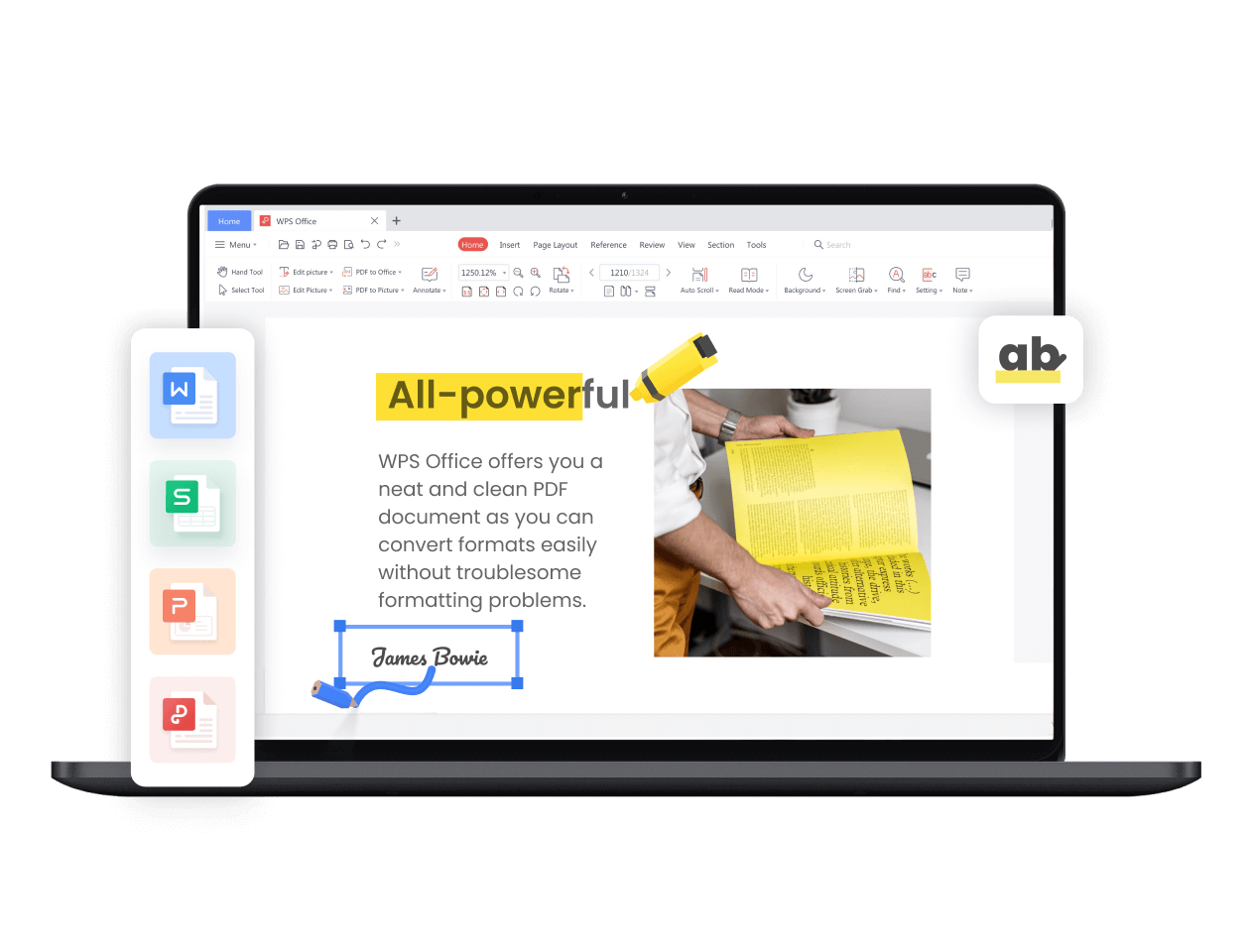
In today’s fast-paced work environment, efficiency is key. Many professionals spend countless hours performing repetitive tasks in office software like WPS Office. Fortunately, WPS offers a powerful tool called macros that can help automate these routine tasks, saving both time and effort. By understanding how to use WPS macros effectively, you can significantly boost productivity and streamline your workflow.
Macros in WPS are sequences of commands and instructions that can be recorded and executed automatically. They allow users to automate repetitive processes, such as formatting documents, creating tables, generating reports, or manipulating data in spreadsheets. Instead of performing the same series of steps manually every time, a macro executes them instantly, reducing errors and saving valuable time.
To get started with WPS macros, it is important to understand the basics. WPS Office provides a macro recorder that allows users to capture their actions step by step. This feature eliminates the need to learn complex programming languages, making automation accessible to everyone. Once recorded, macros can be stored, edited, and reused whenever needed.
The first step in using WPS macros is to enable the developer tools. In WPS Office, this can be done by navigating to the “Tools” or “Options” menu and selecting “Customize Ribbon” or “Developer.” Once enabled, the Developer tab will appear in the interface, providing access to macro tools such as the recorder, editor, and security settings.
Recording a macro in WPS is simple. Users start the macro recorder, perform the desired actions, and then stop recording. These actions could include formatting text, applying styles, inserting objects, or performing calculations in a spreadsheet. After stopping the recording, the macro is saved with a descriptive name so it can be easily identified and reused later.
One of the key advantages of WPS macros is their ability to perform complex tasks with minimal input. For example, if you frequently create invoices or reports, a macro can automatically populate templates, adjust formatting, and even perform calculations. This automation reduces the likelihood of errors and ensures consistency across documents.
Editing macros in WPS provides even more flexibility. While the macro recorder captures basic actions, advanced users can modify the underlying code to include conditions, loops, and other programming logic. WPS supports VBA (Visual Basic for Applications), which allows users to create highly customized automation routines. This combination of recorded actions and coding capabilities makes macros an incredibly versatile tool for any office user.
Security is an important consideration when using macros. Since macros can execute commands automatically, they can potentially carry malicious code if obtained from untrusted sources. WPS provides security settings to control macro execution, allowing users to enable, disable, or selectively run macros based on their source. It is always recommended to create and use macros from trusted sources and avoid downloading unfamiliar macro-enabled files.
Macros can be shared across teams to improve collective productivity. By creating a library of commonly used macros, organizations can standardize processes, reduce repetitive work, and ensure that employees follow consistent procedures. Sharing macros also allows less experienced users to benefit from automation without needing to understand the details of macro programming.
In addition to saving time, WPS macros can enhance accuracy. Manual data entry and formatting are prone to human error, especially when dealing with large datasets. Automating these tasks with macros ensures that each step is performed exactly as intended, improving the quality and reliability of your work.
WPS macros are not limited to documents and spreadsheets. They can also be applied in presentations to automate slide formatting, insert predefined content, or create uniform designs. By using macros across different WPS Office applications, users can achieve a high level of efficiency in multiple types of tasks.
To maximize the benefits of WPS macros, it is helpful to plan automation strategies carefully. Identify repetitive tasks, outline the steps involved, and test macros thoroughly before using them on important documents. Over time, as more macros are created and refined, your workflow can become increasingly efficient.
Learning to use WPS macros effectively can seem challenging at first, but the investment pays off quickly. Start with simple tasks, such as applying a consistent header style or inserting a table format, and gradually move on to more complex automation. Tutorials, online forums, and the WPS help center can provide guidance and examples to help users expand their macro skills.
Another useful feature is assigning keyboard shortcuts to macros. This allows users to execute macros instantly without navigating through menus, further reducing time spent on repetitive tasks. Coupled with the ability to assign macros to buttons or custom toolbars, this creates a highly efficient work environment.
WPS macros also integrate well with other productivity tools. For example, data from external sources like CSV files or databases can be processed automatically, formatted, and presented without manual intervention. This connectivity enhances workflow automation and enables users to handle larger volumes of data more effectively.
In conclusion, learning how to use WPS macros is a valuable skill for anyone looking to save time and improve productivity. By automating repetitive tasks, reducing errors, and enabling consistent processes, macros transform the way users interact with WPS Office. With careful planning, practice, and a willingness to explore advanced features, anyone can harness the full potential of WPS macros to streamline their daily work and achieve better results in less time.
WPS macros are a testament to how smart automation can enhance office productivity. Embracing this feature not only saves time but also empowers users to focus on higher-value tasks, ultimately making work more efficient, accurate, and enjoyable.